1. Filetype
Google likes WEBP images so it is best practice to convert all images to this format. We recommend using this Chrome Extension which provides you a simple drag and drop interface.
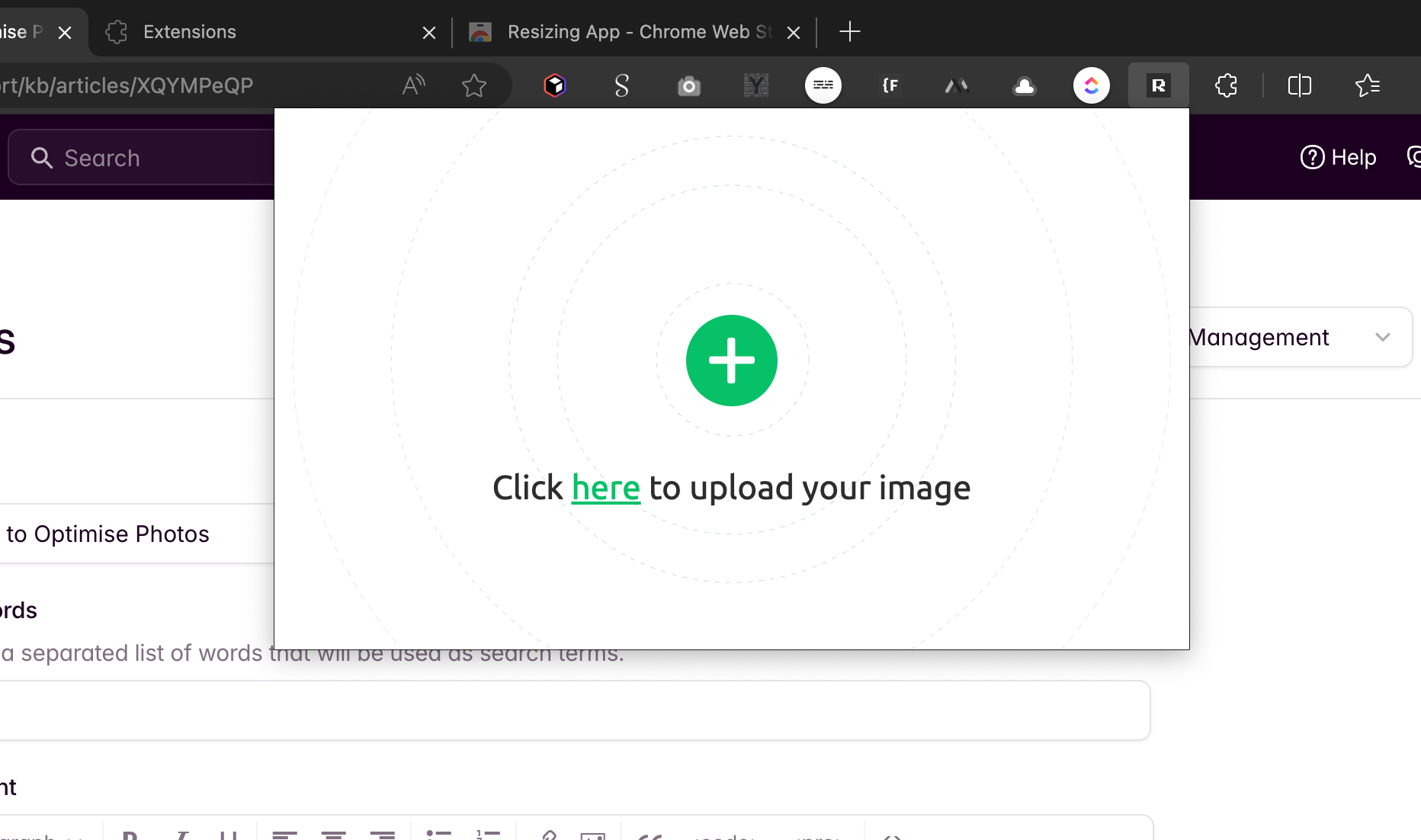
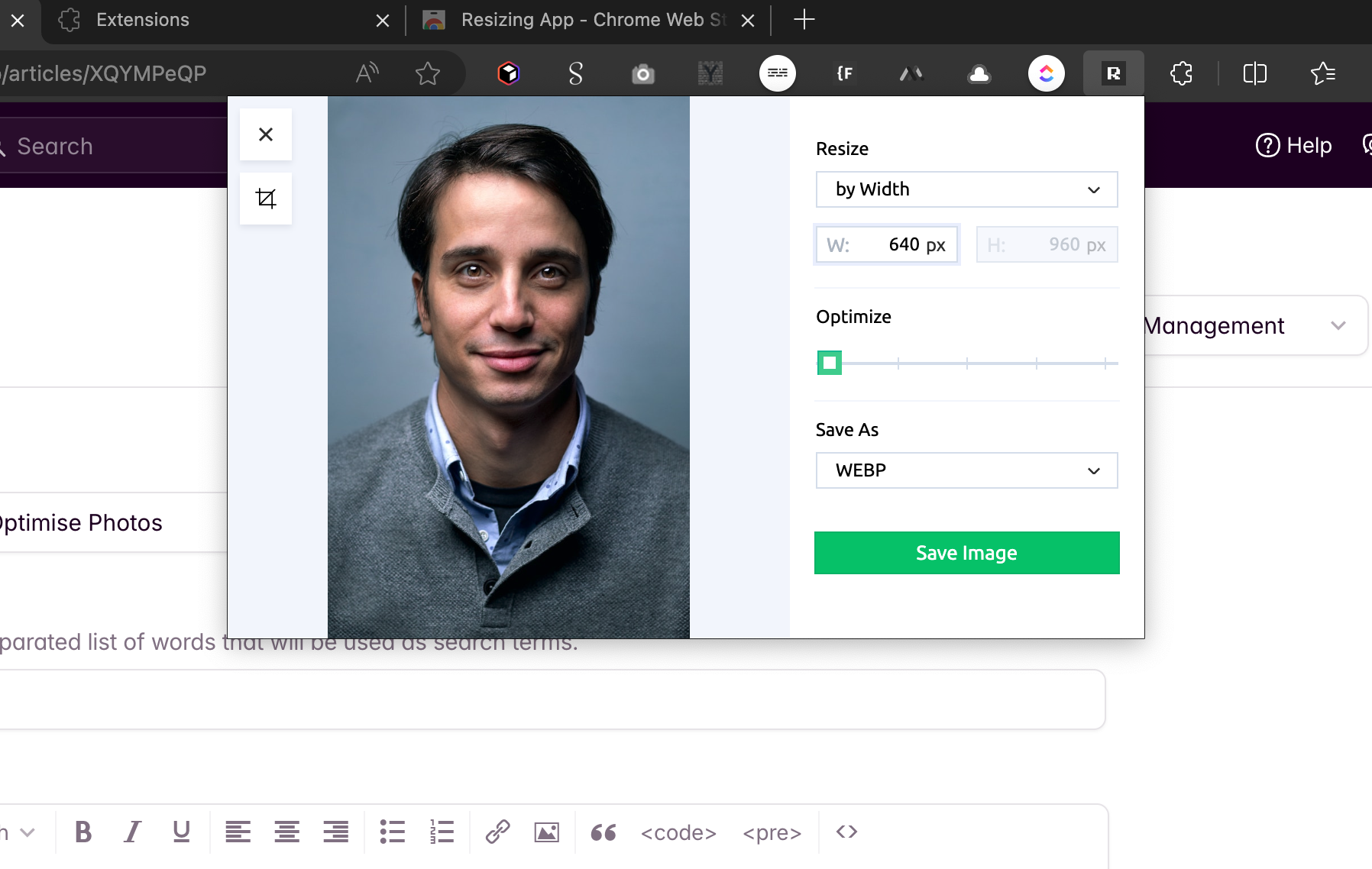
Once the image has been uploaded you can crop the image, select new dimensions and choose to Save As WEBP.
 2. Dimensions, size & compression
The dimensions of your image directly impact the size of the image file. The size of the file directly impacts how long your web page takes to load and in turn impacts how highly Google ranks your website in their search results. All large images on the website should ideally be no more than 512 KB, and absolutely no larger than 1 MB. If your image is larger than this, first try resizing it to something below 1600px wide. If the final result is still more than 1 MB, try also adjusting the 'Optimize' slider to the right. This will reduce the file size at the expense of image clarity.
3. Cropping
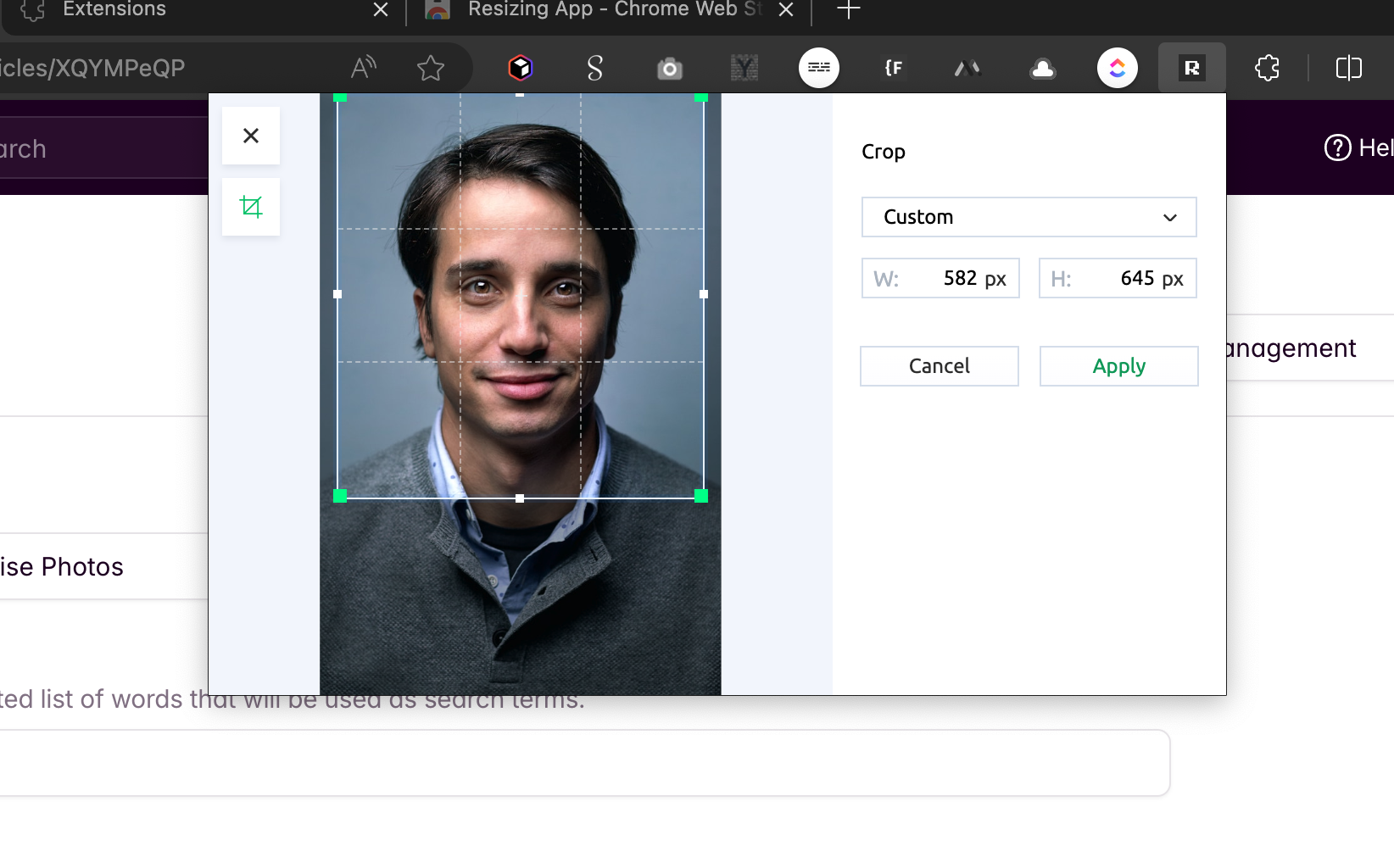
You can also choose to crop the image. Click the crop button below the close (x) button. Consider both desktop and mobile views as images which are legible on desktop can appear much harder to read once scaled down on smaller screens. Cropping is a good way of reducing the file size of an image and also ensuring the focal point of the image is in the center.