When you want to remove the donations from someones account there are two scenarios to be aware of:
- The donation was included in their annual quarterage invoice
- The donation has been invoiced separately from their annual quarterage
Start by navigating to the relevant account via 'CRM > Accounts > Search for the account by name'. Click on the members name.
Check the transactions tab within. the 'History' pane to see what invoices have been raised. You should be able to tell from the invoice amount whether it is quarterage + donation or just one of these. If there is a transaction with a negative amount, this is either a payment or a credit and will be indicated in the 'Type' column. If a full payment has been made against the invoice, the member will need to be partially/fully refunded. See further down for instructions on that.
The example below shows an invoice for a donation of £30 which recurs monthly. The quarterage and donation has been invoiced separately for this user.
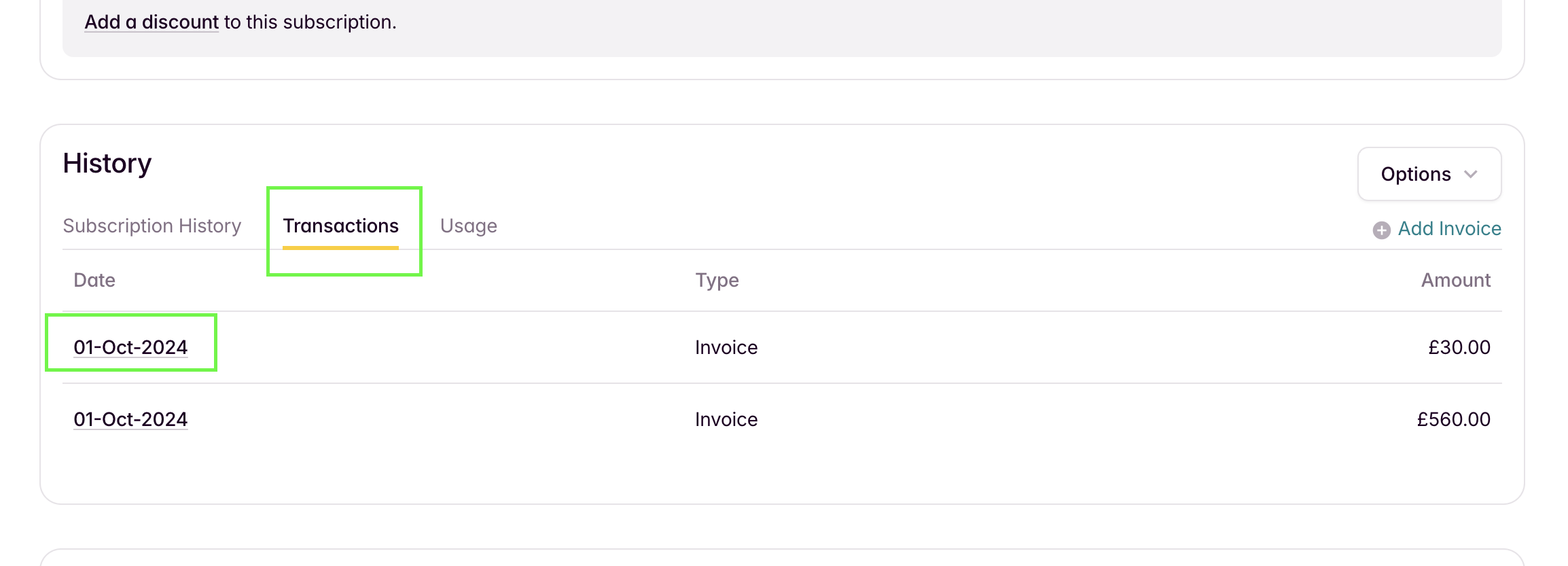
If the invoice includes both the quarterage and the monthly donation amount, you will either need to partially credit the invoice for the same amount as the donation or follow the steps further down to delete the invoice and then create a new one using the "Add invoice" button in the 'Transactions' tab of the 'History' pane.
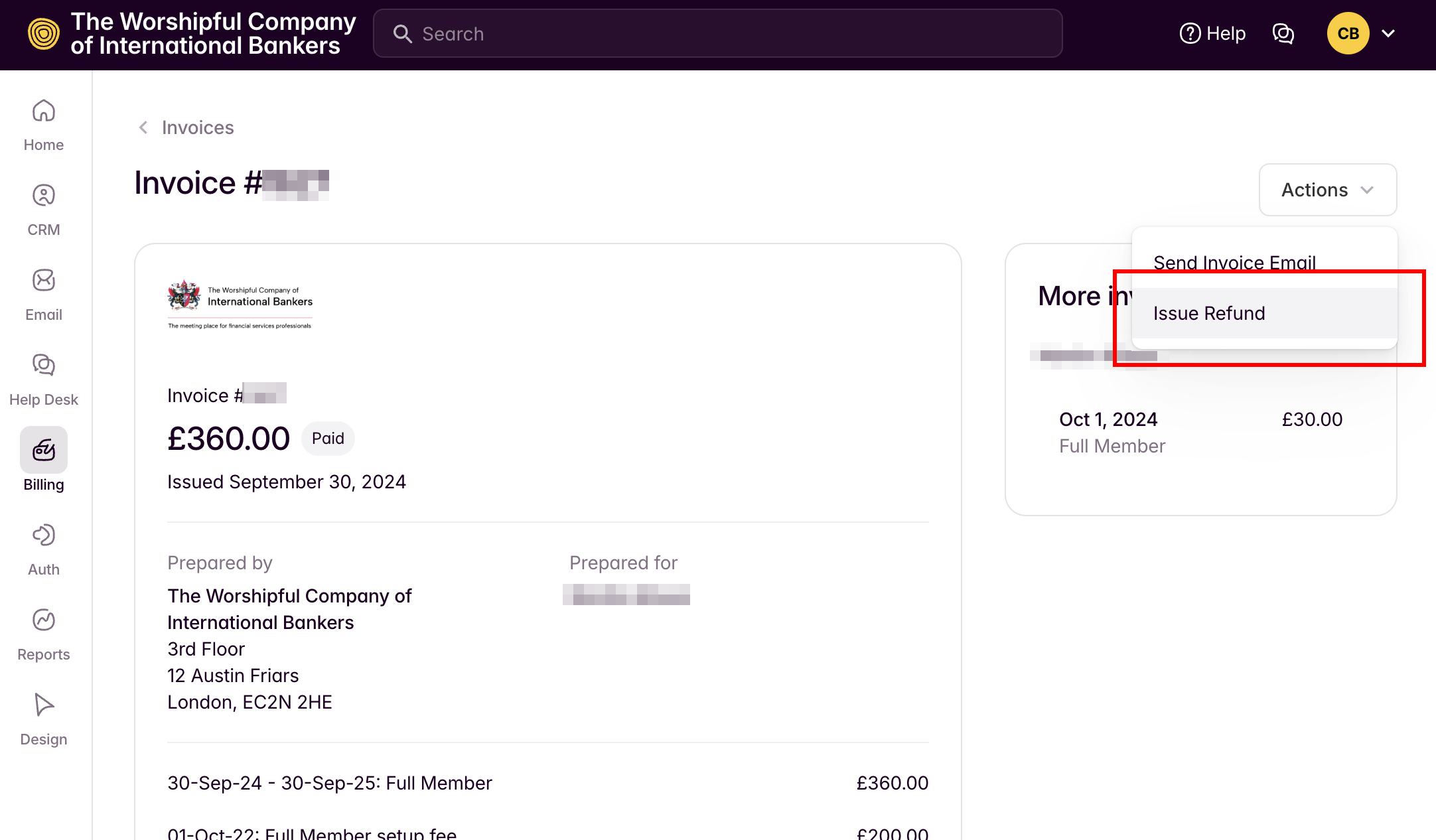
Click on the date of the invoice (as shown above) to see the details of it (see image below).
If a refund needs to be issued, click on the "Actions" dropdown and select "Issue Refund". Follow the wizard to refund the correct amount (partial or full).
If the invoice has never been paid and you would like to keep records tidy, the invoice can be deleted. This MUST be done before the add-on is removed from the account, otherwise the invoice will be marked as uncollectible and will no longer be able to be deleted. You can still credit the invoice after though.
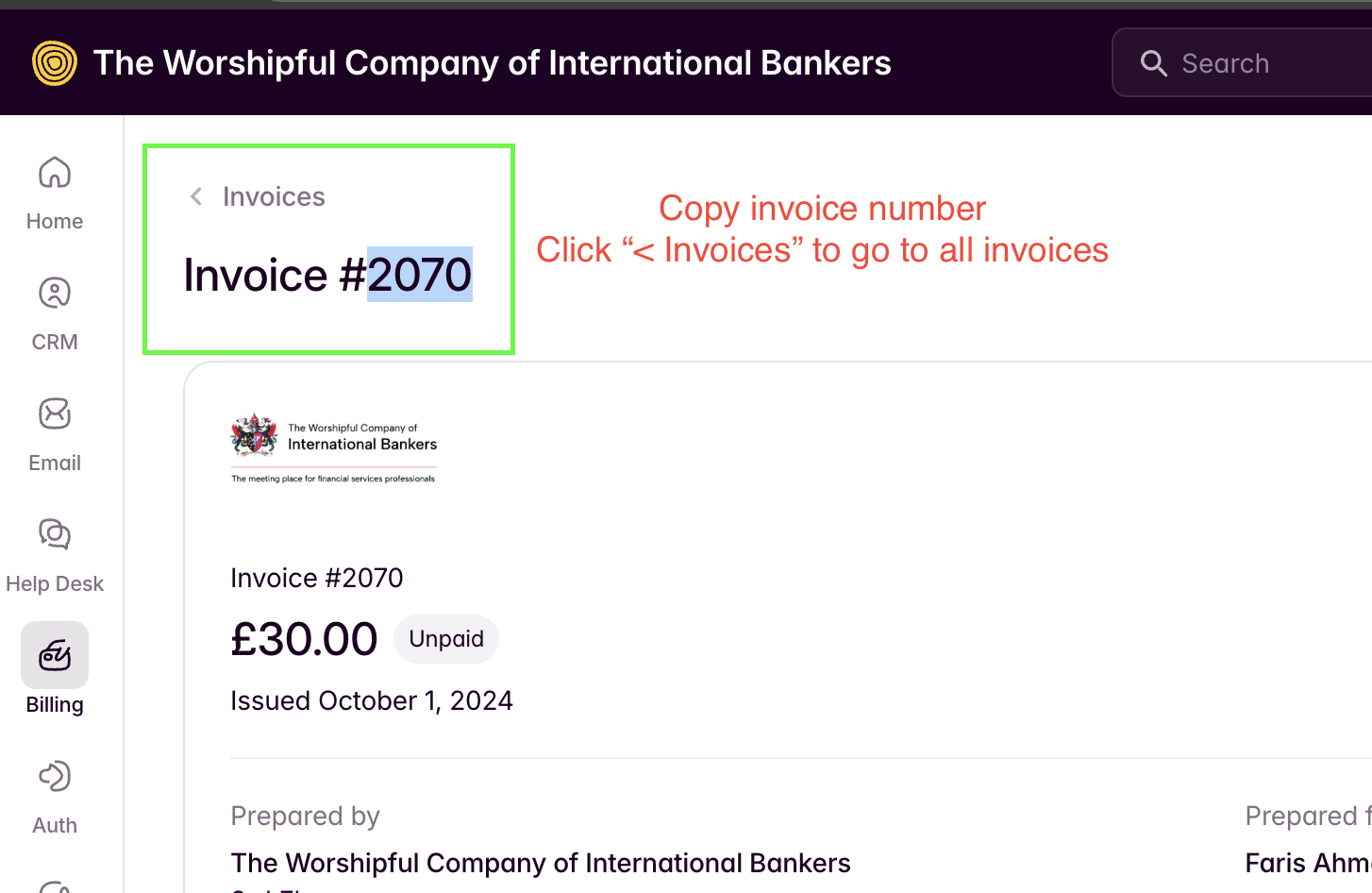
To delete an invoice, first copy the invoice number and then click on the "< Invoices" button just above it to see all invoices.
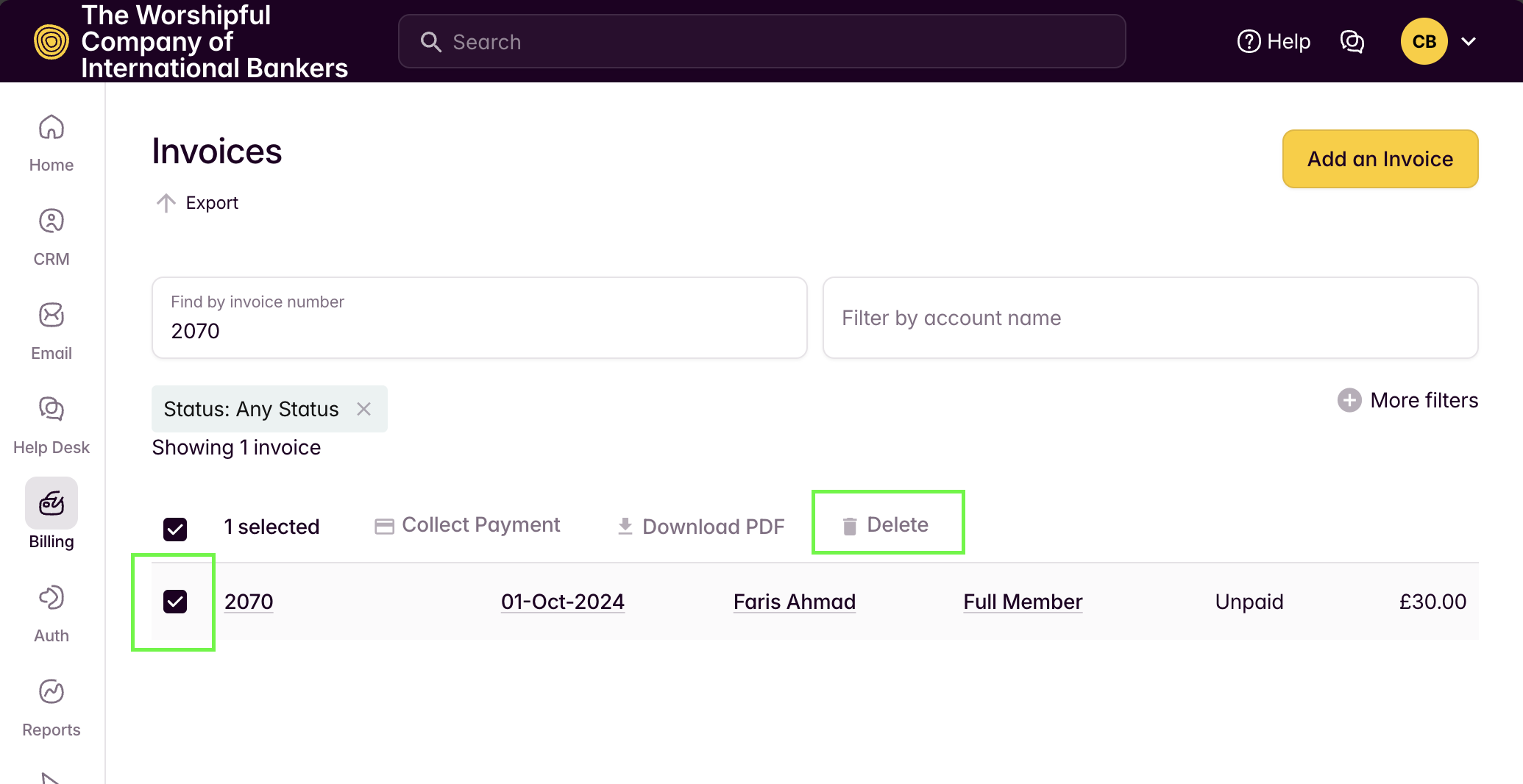
Search for the invoice number and check the checkbox to select it. Now click the 'Delete' button to permanently remove the invoice. Now return to the members account record to remove the donation add-on.
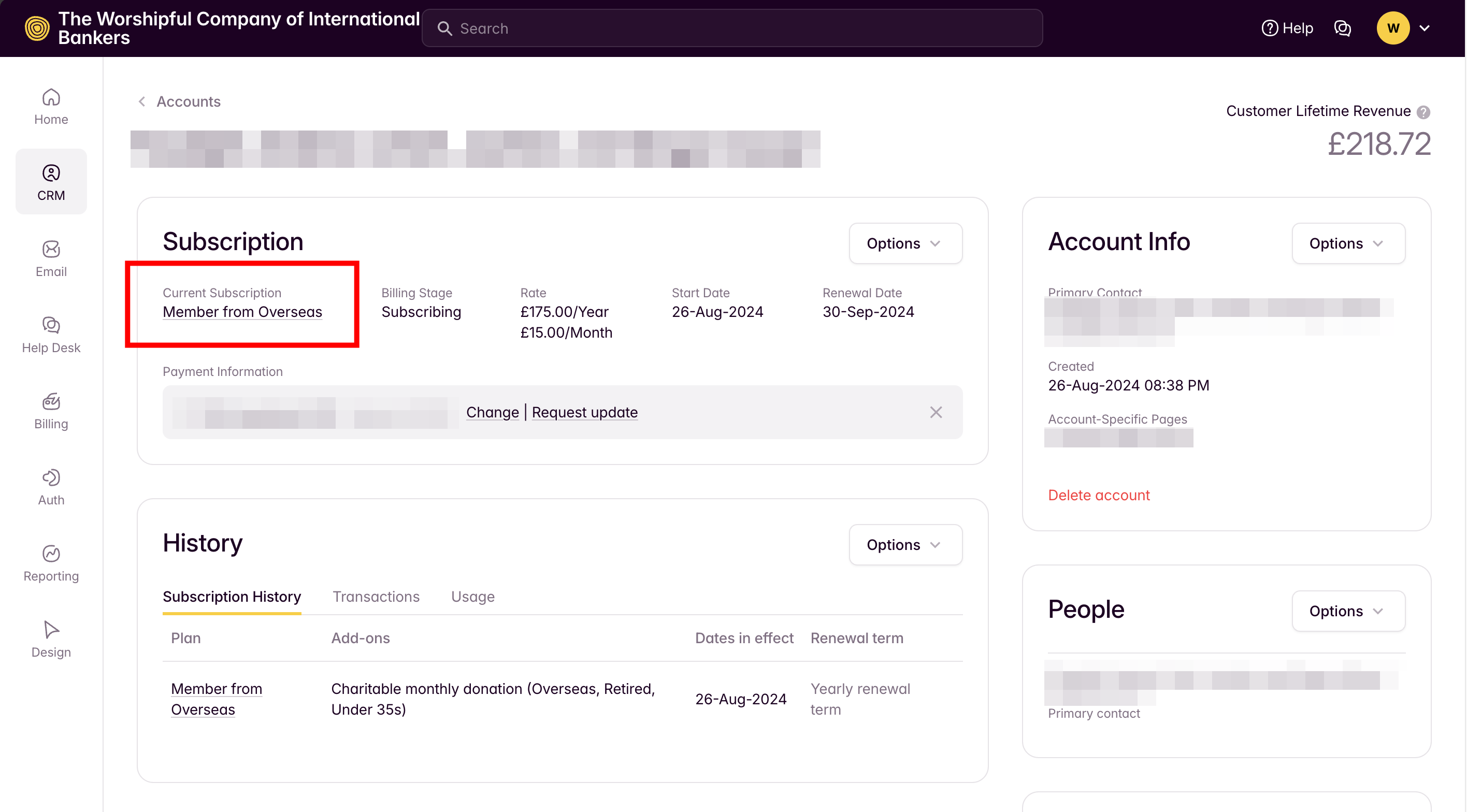
Within the 'Subscription' pane, click on the name of the current subscription.
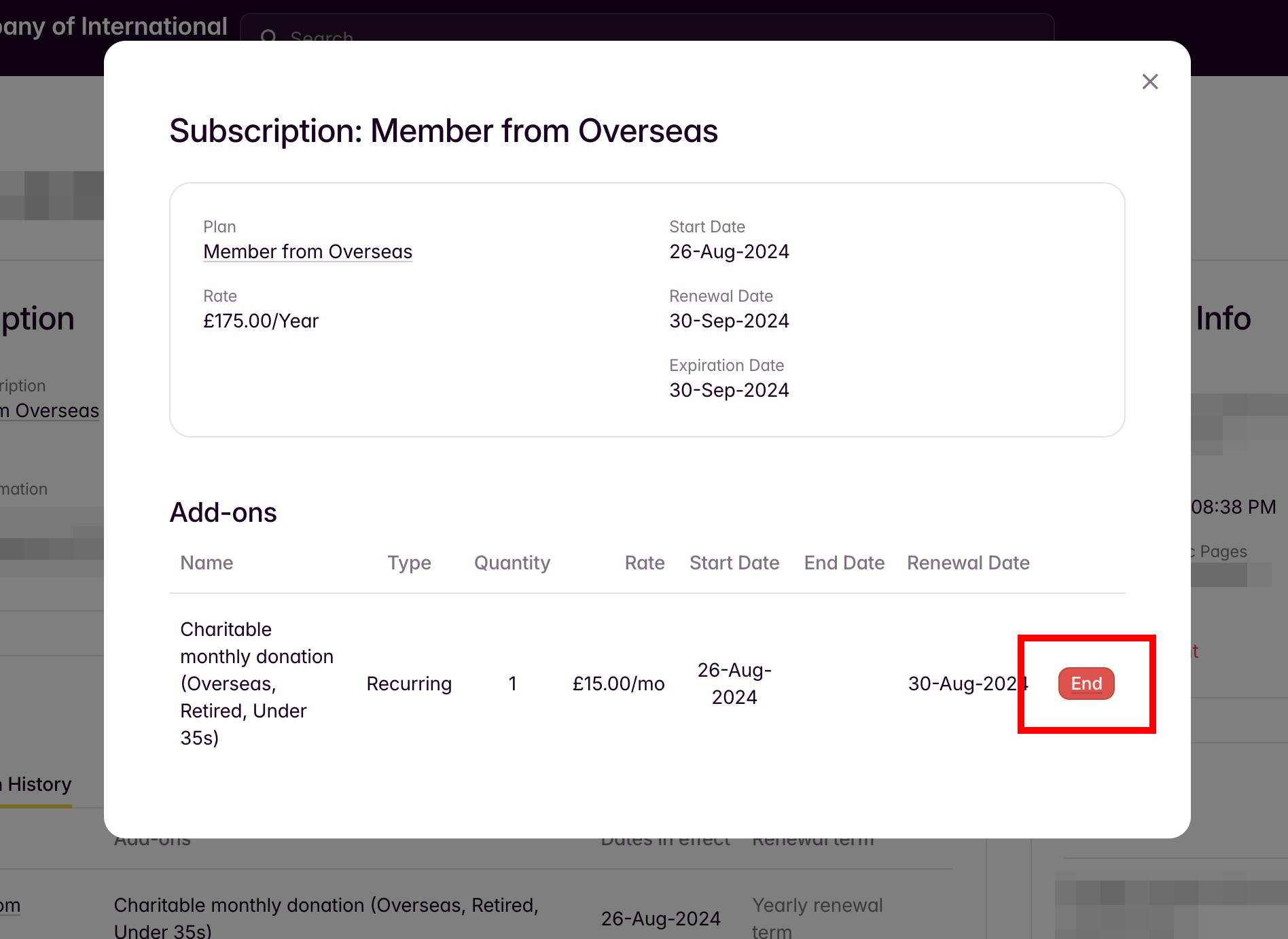
You can then see the add-ons and the ability to "End" any of the add-ons currently linked to the subscription (in this case a donation). Click on 'End' and choose 'End add-on immediately' to remove the renewal date and stop the add-on renewing the following payment cycle.
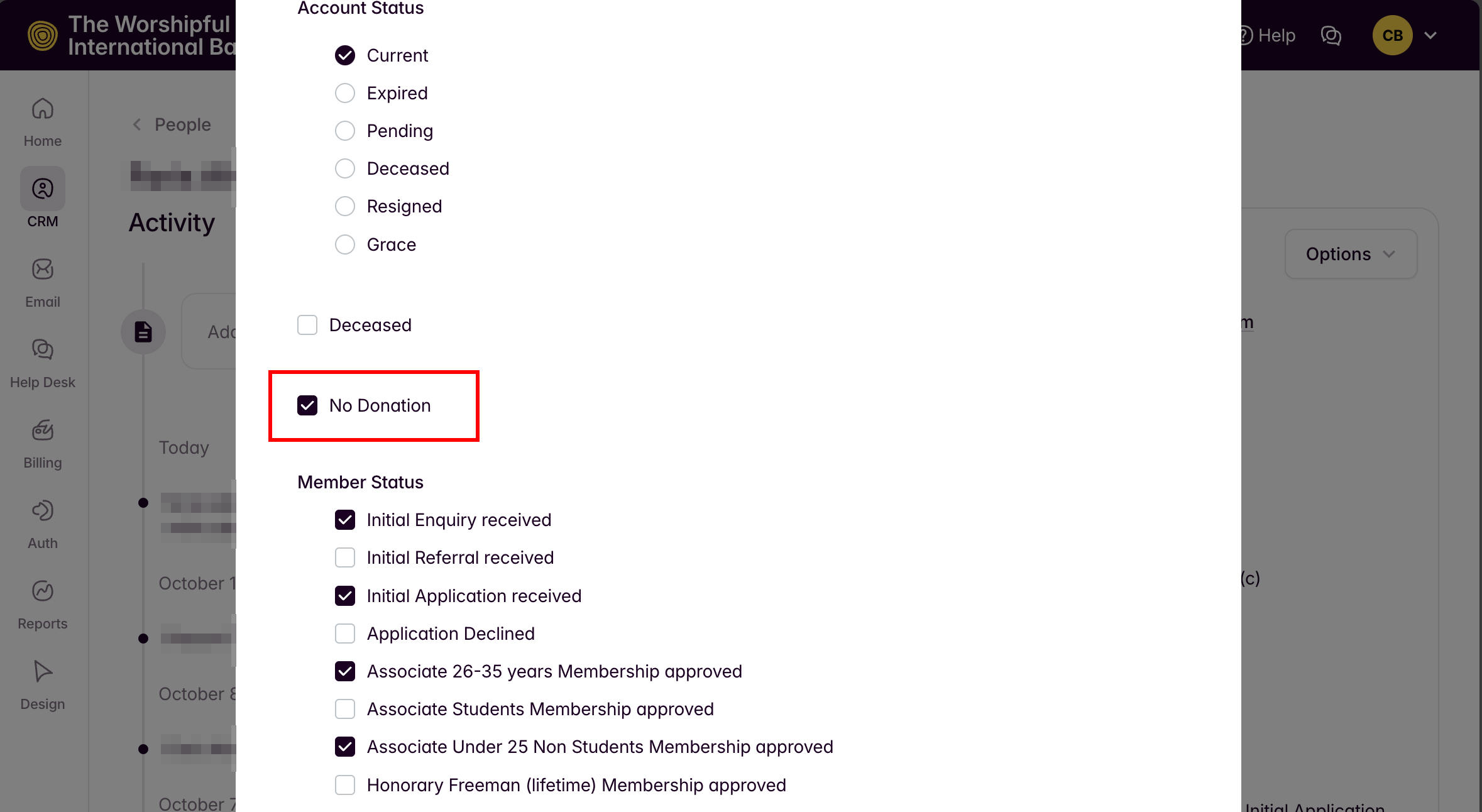
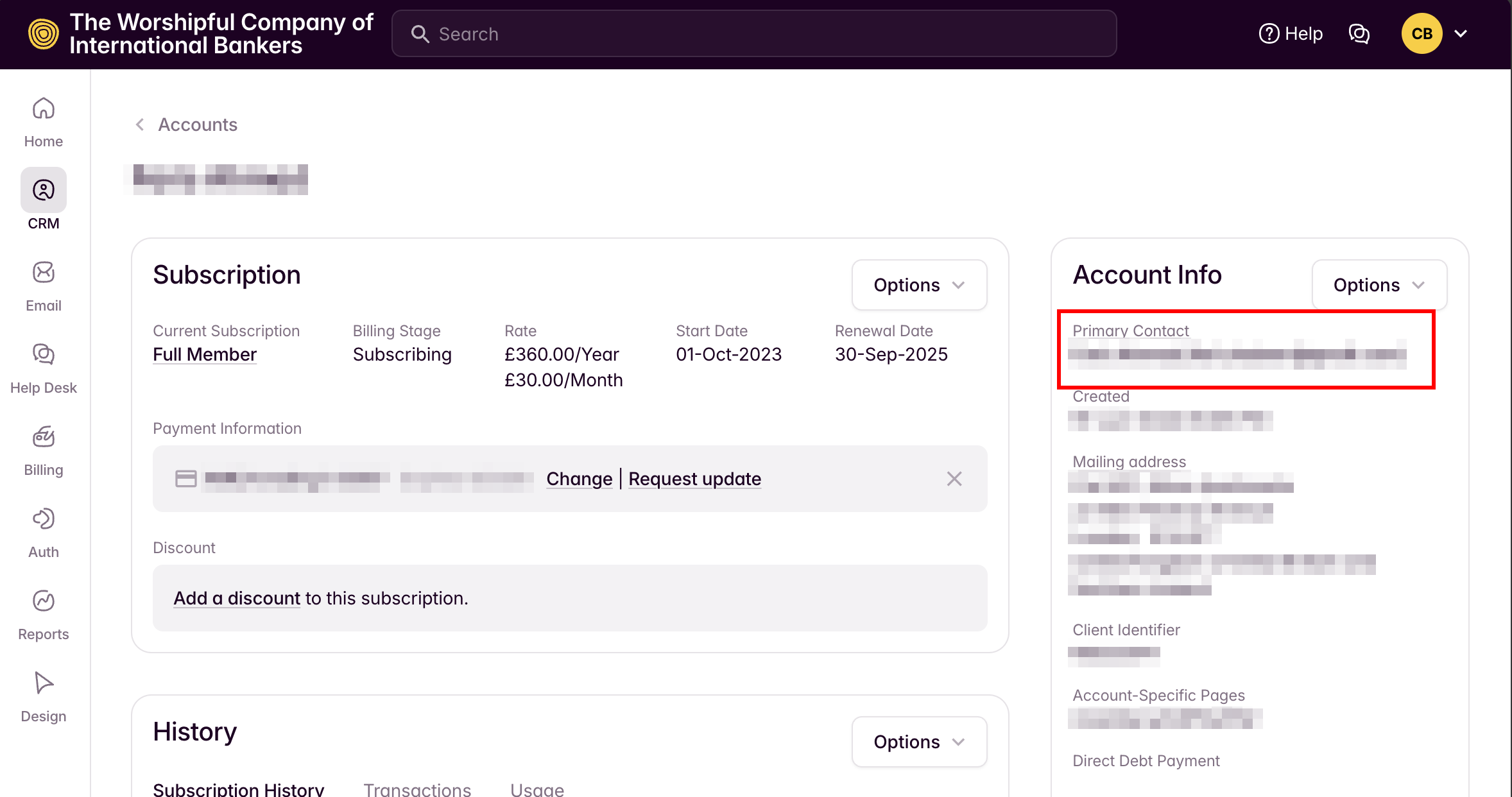
The last step is to make sure the members Primary Contact donation preference is set to "No Donation" so they will not be asked to donate again without prior permission. Click on their Primary Contact email address to go to their Primary Contact record.
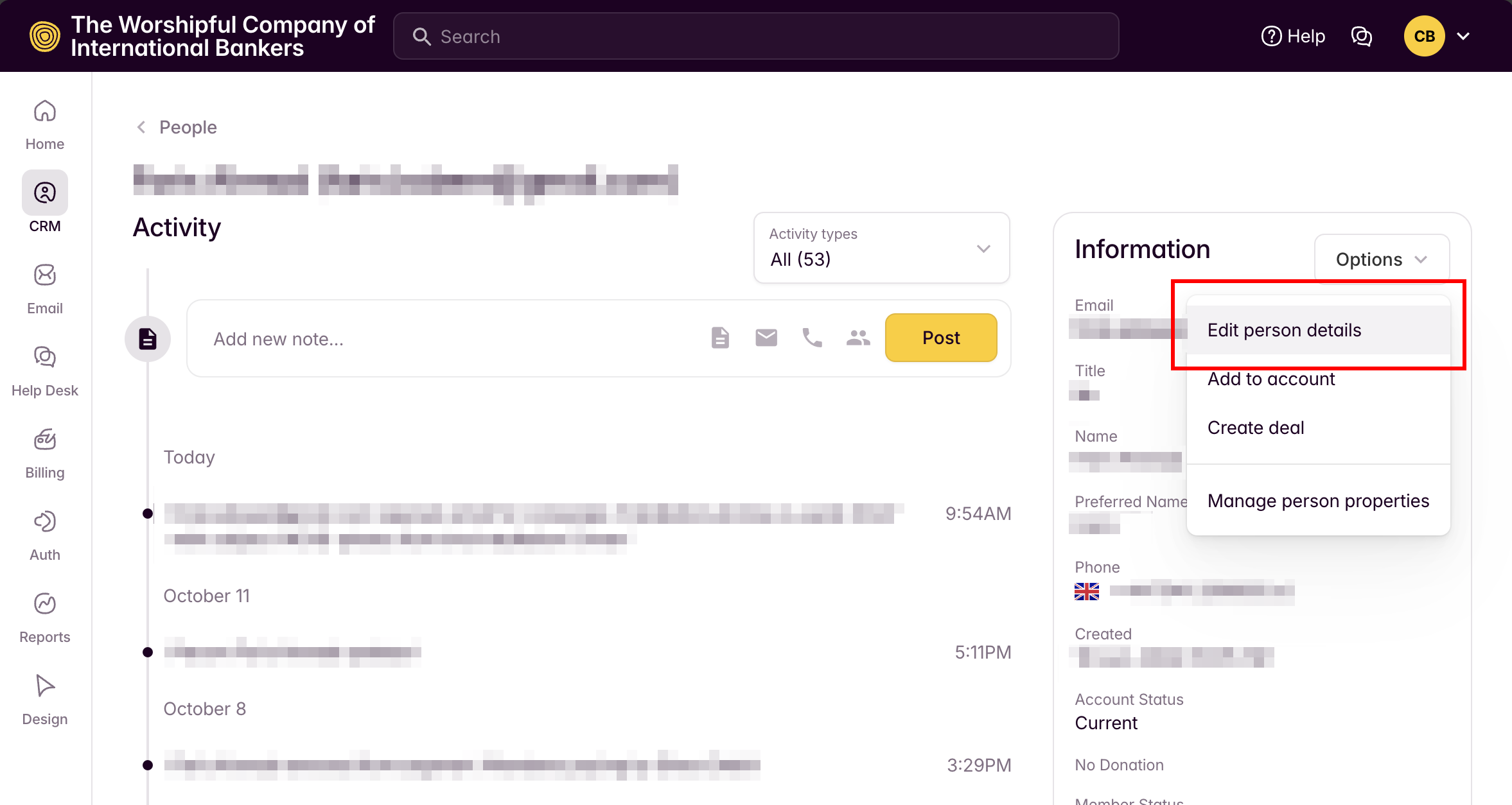
Open up their "person details" by clicking on the 'Options' dropdown and selecting 'Edit person details'.
Select 'No Donation' to update their preference.